
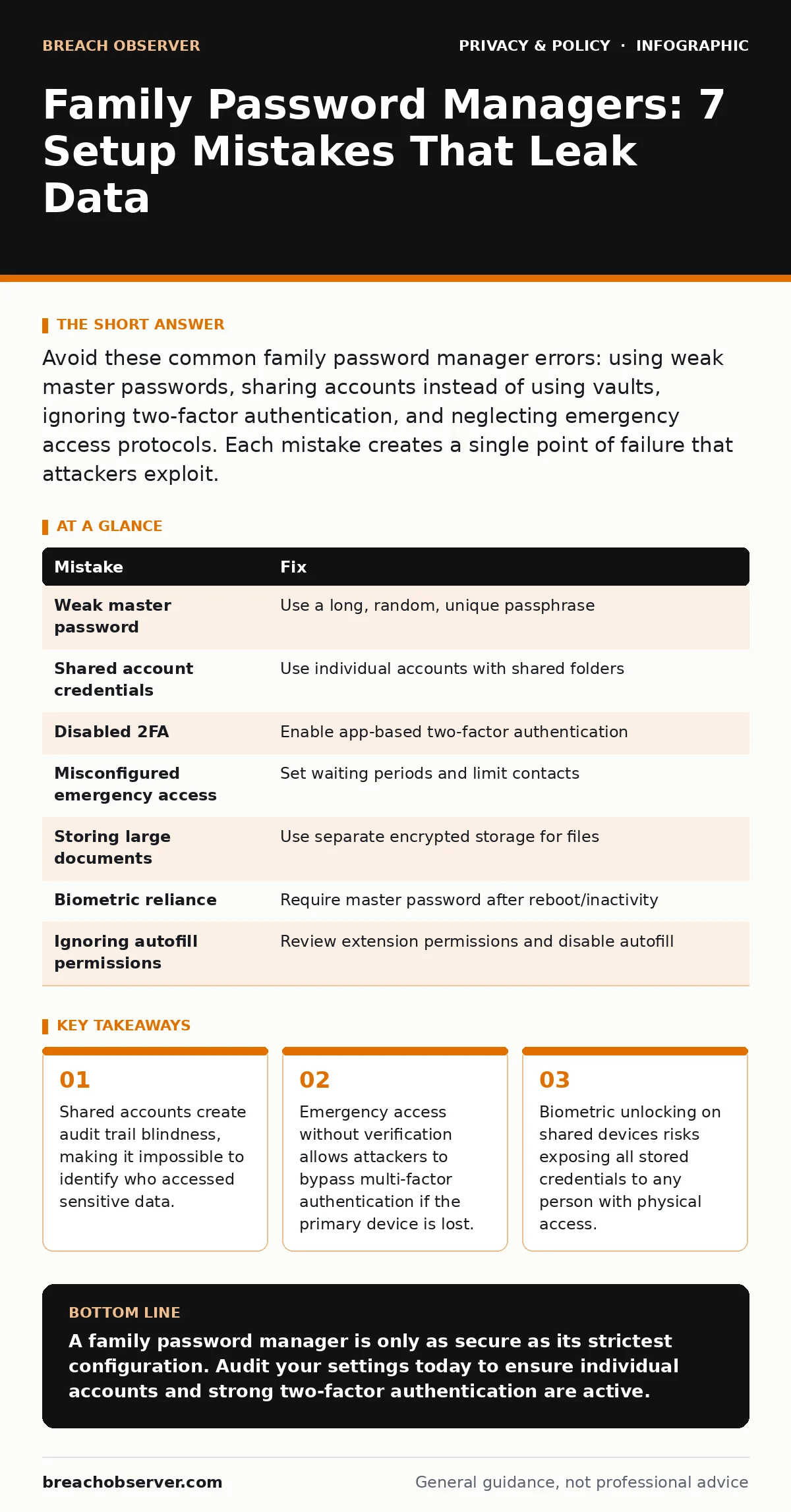
Avoid these common family password manager errors: using weak master passwords, sharing accounts instead of using vaults, ignoring two-factor authentication, and neglecting emergency access protocols. Each mistake creates a single point of failure that attackers exploit.
Mistake 1: Using a Weak Master Password
Why it hurts: The master password is the only secret that protects the entire encrypted vault. If an attacker obtains your encrypted data from a cloud backup or a compromised device, they can attempt to crack this single password offline. A short or common phrase offers no resistance to modern hardware-accelerated cracking tools. This single point of failure exposes every credit card, email account, and private message stored within the manager.
The fix: Create a long, random passphrase consisting of at least four unrelated words. Add numbers and symbols to increase entropy further. Ensure this password is never used anywhere else on the internet. Write it down on paper and store it in a physical safe, not in a digital note or email. If you forget it, the data is permanently lost, so memorisation is difficult but necessary.
Mistake 2: Sharing the Same Account Credentials
Why it hurts: Many families log into the same username and password to share the vault. This destroys the audit log, which records who accessed which entry and when. If a child’s account is compromised, the attacker has access to the entire family’s financial and personal data. You cannot revoke access for one person without locking out everyone else. This practice also violates the terms of service of most providers, risking account suspension.
The fix: Use the provider’s specific family plan features. Each member gets their own login and master password. You then share specific entries or entire folders as needed. This maintains individual accountability and allows you to remove a member’s access instantly if their device is lost or stolen. It also ensures that each person’s browsing history and autofill data remains private from other family members.
Mistake 3: Disabling Two-Factor Authentication
Why it hurts: Two-factor authentication (2FA) requires a second form of verification, such as a code from an app, before granting access. Disabling this assumes your master password is unbreakable, which is a dangerous gamble. If your password is leaked in a breach elsewhere, attackers can log in immediately. Without 2FA, there is no barrier to stop automated bots from testing stolen credentials against your account.
The fix: Enable 2FA for the primary account and every family member’s account. Use an authenticator app rather than SMS, as phone numbers can be hijacked through SIM swapping. Store backup recovery codes in a secure, offline location. These codes are your only way back in if you lose your phone or authenticator app. Test the recovery process once a year to ensure the codes still work.
Misconfigured Emergency Access
Why it hurts: Emergency access allows a trusted person to request access to your vault if you are incapacitated. If configured with instant access or no waiting period, an attacker who compromises your account can grant themselves immediate entry. Some families assign emergency access to too many people, increasing the attack surface. A single compromised emergency contact can bypass all your security measures.
The fix: Set a waiting period of at least twenty-four hours for emergency access requests. This delays an attacker and gives you time to revoke access if you notice suspicious activity. Limit emergency contacts to one or two highly trusted individuals. Regularly review who has this permission and remove former partners or employees immediately. This aligns with best practices for managing digital privacy rights.
Mistake 5: Storing Sensitive Documents in the Vault
Why it hurts: Password managers are optimised for short text strings, not large files. Uploading passports, tax returns, or medical records increases the size of your encrypted blob. If the vault is breached, these high-value documents are immediately available to attackers. Large files also slow down sync times and can cause corruption if the sync process is interrupted. This creates a single repository for your most sensitive data, making it a high-priority target.
The fix: Store only login credentials, security questions, and short notes in the password manager. For documents, use a separate encrypted drive or a dedicated secure file storage service with its own access controls. Keep a copy of critical documents offline. This separation of duties ensures that a breach in one system does not compromise all your sensitive information. It also simplifies the process of handling data subject access requests.
See also: Stop Password Leaks: The Controls That Actually Work
Mistake 6: Relying on Biometric Unlocking Alone
Why it hurts: Biometric data, such as fingerprints or facial recognition, is convenient but not secret. Your fingerprint is left on every surface you touch. If your phone is stolen while unlocked, the thief can access the password manager without knowing the master password. Biometric unlock often bypasses the need for the master password for a short period, creating a window of vulnerability. This is particularly risky on shared devices or in households with young children.
The fix: Use biometrics only as a convenience layer on top of the master password, not as a replacement. Ensure the password manager requires the master password after a certain period of inactivity or after a device reboot. Do not enable biometric login on shared tablets or computers. For deeper understanding of these risks, consider reading our guide on biometric data. This adds a layer of friction that stops casual snooping and theft.
Mistake 7: Ignoring Autofill Permissions
Why it hurts: Browser extensions for password managers often have permissions to read and modify data on all websites. If the extension is compromised, it can capture keystrokes or inject malicious code. Malicious websites can also trick the extension into filling credentials into fake forms. This is known as a phishing attack, and it bypasses the protection of the stored password. The extension becomes a bridge between the secure vault and the insecure web.
The fix: Review the permissions granted to the password manager extension regularly. Disable autofill for non-essential sites. Use the extension’s built-in phishing detection features, if available. Consider using the browser’s native password manager for low-risk sites and reserve the dedicated manager for high-value accounts. This reduces the attack surface and limits the damage if the extension is compromised. See our guide on social media privacy risks for more on managing digital footprints.
| Mistake | Fix |
|---|---|
| Weak master password | Use a long, random, unique passphrase |
| Shared account credentials | Use individual accounts with shared folders |
| Disabled 2FA | Enable app-based two-factor authentication |
| Misconfigured emergency access | Set waiting periods and limit contacts |
| Storing large documents | Use separate encrypted storage for files |
| Biometric reliance | Require master password after reboot/inactivity |
| Ignoring autofill permissions | Review extension permissions and disable autofill |
Key takeaways
- Shared accounts create audit trail blindness, making it impossible to identify who accessed sensitive data.
- Emergency access without verification allows attackers to bypass multi-factor authentication if the primary device is lost.
- Biometric unlocking on shared devices risks exposing all stored credentials to any person with physical access.
A family password manager is only as secure as its strictest configuration. Audit your settings today to ensure individual accounts and strong two-factor authentication are active.
Frequently asked questions
What happens if I forget my master password?
Most providers cannot recover your data. You will need to create a new account and reset all your passwords manually.
Are free family plans secure?
Free plans often lack advanced features like audit logs and emergency access. They may also have weaker encryption standards or fewer security audits.
Can I use my password manager on multiple devices?
Yes, most managers sync across devices. Ensure each device has its own login and that the master password is not stored in plain text.
How do I protect my children's accounts?
Use individual accounts for each child. Monitor their activity through the audit log and teach them about online anonymity and safe browsing habits.
How this guide was produced: written by the Breach Observer editorial team with AI assistance, checked against the public references listed below, and reviewed when the facts change. See our editorial policy or report an error.