
Start with logging only to map your network traffic. Define categories based on business need, not fear. Deploy the filter at the perimeter or proxy. Test with known malicious domains. Review logs weekly to tune false positives and ensure coverage.
Map your current traffic before blocking anything
You cannot secure what you do not understand. Before you install any filtering rules, you must see how your users actually use the internet. Many teams skip this step and immediately block entire categories like "Social Media" or "File Sharing". This creates immediate frustration and forces users to find workarounds.
Run your filtering appliance in logging mode for at least two weeks. In this mode, the device records every web request but allows it to pass through. You will see which sites are critical for business operations and which are rarely visited. You will also discover shadow IT tools that employees use because official tools are too slow or complex.
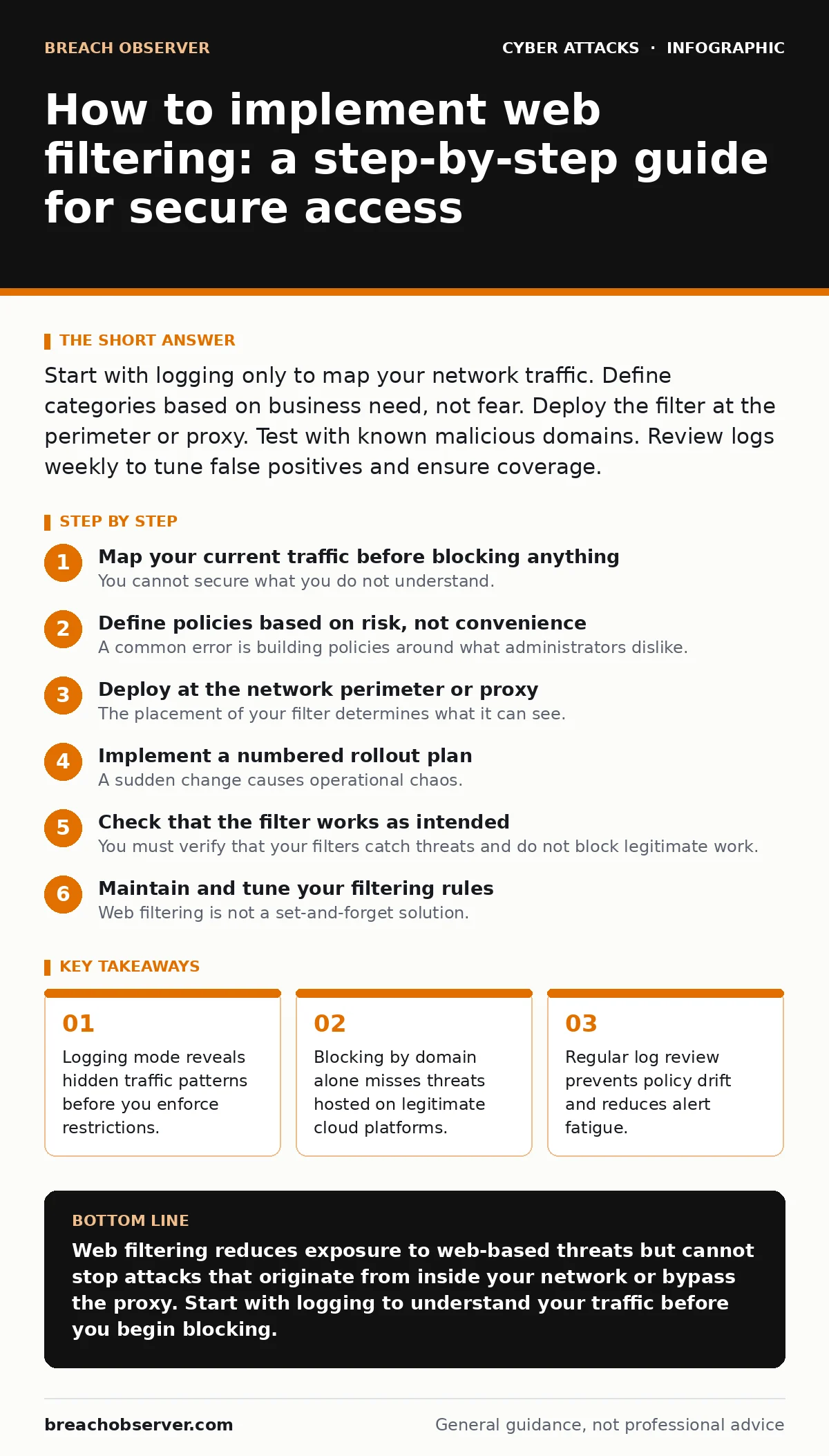
Define policies based on risk, not convenience
A common error is building policies around what administrators dislike. Instead, build them around what the attacker wants. Your goal is to stop command-and-control communication, malware downloads, and data exfiltration. You also want to reduce the noise that distracts your security team.
Create a whitelist for approved business applications. Create a blacklist for known malicious categories like malware, phishing, and ransomware. For grey areas like streaming or gaming, decide if the bandwidth cost outweighs the security risk. Do not ban everything that is not explicitly allowed unless you have a very small, controlled environment. Most organisations will find that a blanket block breaks legitimate business functions.
Deploy at the network perimeter or proxy
The placement of your filter determines what it can see. If you place it at the internet edge, you protect all devices that route through that gateway. If you place it on a reverse proxy, you protect your web applications from external abuse. For internal user protection, a forward proxy or a network-level appliance is standard.
Ensure all HTTP and HTTPS traffic flows through the inspection engine. This requires SSL inspection or TLS decryption. Without this, you can only see the domain name, not the content of the page. You will miss threats hidden inside encrypted streams. Configure your certificate authority to sign the decrypted sessions so browsers do not throw errors for every secure site.
Implement a numbered rollout plan
A sudden change causes operational chaos. Roll out your filtering in stages to allow for adjustment.
Step 1: Enable logging for all users
Turn on logging for the entire network. Do not block anything yet.
- Verify that logs are being sent to your SIEM or log server.
- Check that timestamp and user identity fields are populated correctly.
- How to tell it worked: You can query logs for a specific user and see their last 100 visited domains.
Step 2: Block high-risk categories
Enable blocking for malware, phishing, and adult content. These are universally accepted risks.
- Update your block pages to explain why access was denied.
- Provide a clear process for users to request an exception.
- How to tell it worked: Logs show successful blocks for known test domains and no business complaints about critical tools.
Step 3: Restrict non-business categories
Limit access to social media, streaming, and gaming during working hours.
- Define "working hours" clearly in the policy.
- Allow access outside these hours if your policy permits.
- How to tell it worked: Bandwidth usage for these categories drops significantly during the day.
Step 4: Enable SSL inspection
Start decrypting and inspecting HTTPS traffic for a small pilot group.
- Install the inspection certificate on pilot devices.
- Monitor for application breakages or false positives.
- How to tell it worked: You detect a threat that was hidden in encrypted traffic.
Check that the filter works as intended
You must verify that your filters catch threats and do not block legitimate work. Use a controlled test environment with known malicious domains. Do not use live malware on production systems.
Create a list of test domains that mimic phishing, malware hosting, and data exfiltration attempts. Access these domains from different user accounts. Check if the request is blocked or logged. Also, try to access legitimate business sites that are often false-positives, such as new cloud services or developer tools.
If a legitimate site is blocked, you have a false positive. This erodes trust in the security team. Users will simply disable security software or use personal devices to bypass the filter. You must have a fast process to whitelist these exceptions after verifying they are safe.
See also: Strategic Threat Intelligence: Aligning Security Spend with Real Risk
Maintain and tune your filtering rules
Web filtering is not a set-and-forget solution. The internet changes daily. New domains appear, and old ones change their purpose. Your rules will drift out of alignment with your business needs.
Review your logs weekly. Look for trends in blocked requests. If a specific category is generating many blocks, consider refining the rule. If users are constantly requesting exceptions for a specific site, evaluate if it should be whitelisted permanently.
Update your threat intelligence feeds regularly. These feeds provide the data that powers your block lists. If your feeds are stale, you will miss new threats. Ensure your filtering device connects to these feeds automatically and updates daily.
Integrate with your broader security posture
Web filtering works best when it talks to other security tools. Integrate it with your endpoint detection and response platform. When the filter sees a suspicious URL, it can alert the endpoint agent to scan the device. When the endpoint sees malware, it can ask the filter to block the associated domain.
This creates a feedback loop that speeds up incident response. It also helps you understand attack vectors more clearly. You can see how an initial click on a phishing link leads to broader compromise. This context is vital for prioritising alerts and reducing noise.
Consider how web filtering relates to session cookie theft. If an attacker steals a session cookie, they do not need to bypass your filter; they already have access. Your filter protects the network edge, but not the authenticated session. Combine filtering with strong MFA fatigue attacks mitigation to protect against credential reuse.
Key takeaways
- Logging mode reveals hidden traffic patterns before you enforce restrictions.
- Blocking by domain alone misses threats hosted on legitimate cloud platforms.
- Regular log review prevents policy drift and reduces alert fatigue.
Web filtering reduces exposure to web-based threats but cannot stop attacks that originate from inside your network or bypass the proxy. Start with logging to understand your traffic before you begin blocking.
Frequently asked questions
Does web filtering protect against ransomware?
It can block known ransomware distribution sites, but it cannot stop ransomware that arrives via email attachments or is already installed on a device.
How do I handle employees who need to access blocked sites for work?
Create a formal exception request process. Verify the business need, check the site for threats, and whitelist it temporarily or permanently with logging enabled.
Can web filtering prevent data exfiltration?
It can detect uploads to known malicious destinations or restricted categories. It cannot inspect the content of every file uploaded to a legitimate cloud storage service without advanced DLP capabilities.
Why is SSL inspection necessary for web filtering?
Most web traffic is encrypted. Without decrypting it, the filter only sees the domain name. It cannot see if the page contains malware or if data is being sent to a phishing site.
How this guide was produced: written by the Breach Observer editorial team with AI assistance, checked against the public references listed below, and reviewed when the facts change. See our editorial policy or report an error.