Reimaging installs a fresh operating system from verified media, wiping the drive clean. It removes rootkits and deep-rooted malware that standard cleaners miss. It does not recover deleted files or clean external drives, so you must back up and verify data separately before proceeding.
The Decision to Wipe
When standard removal tools fail, you face a choice between cleaning and rebuilding. Cleaning involves identifying and deleting malicious files while keeping the operating system intact. Rebuilding, or reimaging, involves erasing the entire drive and installing a fresh copy of the operating system. You choose reimaging when the threat has modified core system files.
This happens with rootkits, which hide their presence by altering kernel operations. It also happens when ransomware has encrypted key configuration files. Attempting to clean these systems is risky because you cannot verify if every hidden component has been removed. The certainty of a fresh install outweighs the time cost of data migration.
### Stage 1: Isolation and Backup
Before touching the drive, you must stop the infection from spreading. Disconnect the computer from the network physically. This prevents the malware from sending stolen credentials or receiving new commands. Identify critical data that needs saving. Do not copy files directly to a network drive, as the malware may still be resident in memory. Use an offline, external storage device that has never connected to the infected machine. Scan this backup on a separate, clean system before trusting it. This step is often skipped in haste, leading to secondary infections.
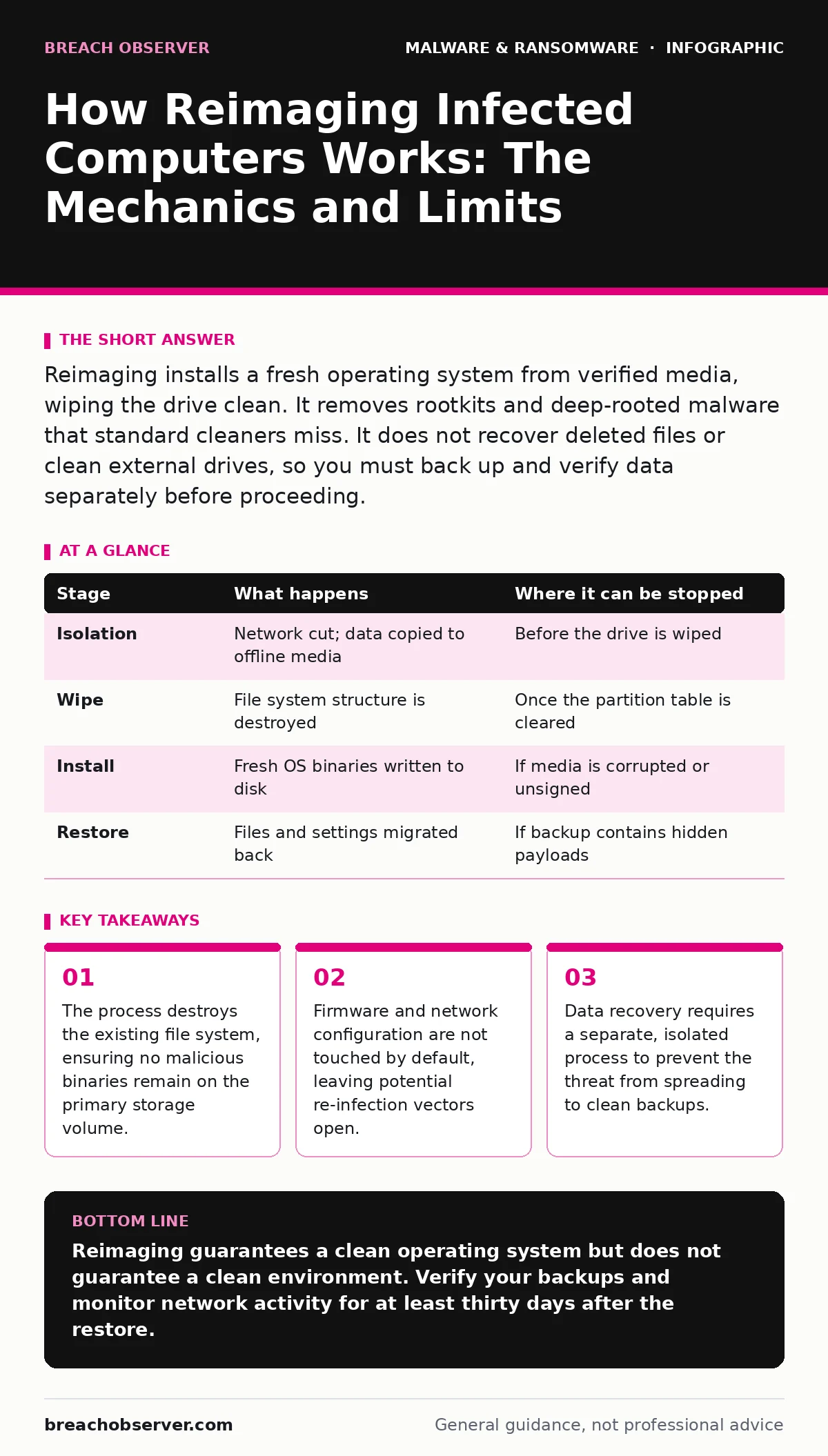
| Stage | What happens | Where it can be stopped |
|---|---|---|
| Isolation | Network cut; data copied to offline media | Before the drive is wiped |
| Wipe | File system structure is destroyed | Once the partition table is cleared |
| Install | Fresh OS binaries written to disk | If media is corrupted or unsigned |
| Restore | Files and settings migrated back | If backup contains hidden payloads |
### Stage 2: The Wipe Mechanism
The wipe phase is where the actual remediation occurs. You boot the computer from external media, such as a USB drive containing the operating system installer. This bypasses the infected internal drive. The installer provides a command-line interface or a graphical tool to partition the disk. You select the option to delete all existing partitions.
This action removes the partition table, which maps the physical storage to logical drives. Without this map, the operating system cannot find any files, including the malware. The tool then creates a new, empty file system structure. This process is irreversible. Any data not backed up in Stage 1 is lost forever. This includes personal documents, application settings, and hidden malware caches.
### Stage 3: Fresh Installation
With the drive blank, the installer writes the operating system files. These files come from the installation media, not the infected drive. This ensures that core system components are untampered. The installer creates a new user account and sets initial configurations. At this point, the computer is theoretically clean. However, it is also vulnerable. It lacks security patches, endpoint protection agents, and application updates. You must connect to the network only after verifying the integrity of the new system. This usually involves running a quick integrity check of the operating system files. If the check passes, the base layer is secure.
### Stage 4: Configuration and Patching
A fresh system is not a secure system until it is hardened. Apply the latest security patches immediately. These patches close known vulnerabilities that attackers exploit. Install endpoint detection and response software. This tool monitors the system for suspicious behaviour in real time. Configure the firewall to deny all inbound connections except those explicitly allowed. Set up automatic updates for both the operating system and applications. This reduces the window of exposure to zero-day exploits. You must also re-establish secure network connections. Use strong, unique passwords for all accounts. Avoid reusing credentials from the infected period, as they may have been compromised.
See also: Breach Notification Rule Requirements: Timelines, Triggers and Compliance · Incident Response Runbooks: 6 Common Misunderstandings Fixed
### Stage 5: Data Restoration
This stage is where most failures occur. You copy backed-up data back to the new system. But the backup might contain dormant threats. Some malware hides in user directories, not system folders. When you restore these files, you reintroduce the infection. To prevent this, scan every file before restoring it. Use a static analysis tool that checks for known malicious signatures.
Also, check for anomalous file sizes or timestamps. If a file looks suspicious, delete it rather than restoring it. Be cautious with application data. Some applications store executable scripts in their configuration folders. These can execute automatically when the application launches. Verify the source of each restored file.
### Stage 6: Verification and Monitoring
After restoration, the system appears normal. But hidden threats may persist. Monitor system resource usage for unusual spikes. Check for new, unknown processes running in the background. Review network traffic for connections to unfamiliar domains. This monitoring period can last weeks. During this time, treat the system as untrusted. Limit user access to essential functions only. If any anomalies appear, repeat the reimage process. Do not attempt to clean again. The presence of any suspicious activity suggests the backup was contaminated or the threat has a secondary persistence mechanism.
The Limits of Reimaging
Reimaging is powerful, but it is not a cure-all. It only affects the storage volume being wiped. If the malware has infected the UEFI firmware, the reimage does nothing. UEFI is the software that initializes hardware before the operating system loads. Malware here survives every wipe. Similarly, if the infection spread to other devices on the network, those devices remain compromised. Reimaging one computer does not secure the environment. You must also review network logs for signs of lateral movement. Check for unauthorized accounts or changed permissions on servers. The threat actor may have established a foothold elsewhere.
Related Considerations
Understanding how threats spread helps you avoid future incidents. For instance, malware droppers and loaders often use legitimate tools to install malicious code, making detection harder. If you use cloud storage, consider how ransomware-as-a-service operators might target your backups. Backdoors are often left behind even after the main payload is removed, allowing re-entry.
If you manage mixed environments, note that removing malware from a Mac involves different mechanisms than Windows. Managed detection and response (MDR) services can help monitor for these subtle signs. Be aware of supply chain risks like malicious PyPI packages, which can infect development environments. IoT malware often propagates via weak credentials, so reset all smart devices. Finally, improve your perimeter by refining email attachment scanning rules to catch initial vectors.
Key takeaways
- The process destroys the existing file system, ensuring no malicious binaries remain on the primary storage volume.
- Firmware and network configuration are not touched by default, leaving potential re-infection vectors open.
- Data recovery requires a separate, isolated process to prevent the threat from spreading to clean backups.
Reimaging guarantees a clean operating system but does not guarantee a clean environment. Verify your backups and monitor network activity for at least thirty days after the restore.
Frequently asked questions
Does reimaging remove all viruses?
It removes all malware on the wiped drive, but it does not clean firmware, external drives, or network shares.
How long does the reimage process take?
It typically takes two to four hours, depending on hardware speed and the amount of data to restore.
Can I keep my files during a reimage?
You must back up files to an offline device, scan them, and then restore them manually. You cannot keep them on the drive.
Is reimaging better than antivirus cleaning?
Reimaging is more thorough for deep-rooted infections, while antivirus cleaning is faster for simple, surface-level threats.
How this guide was produced: written by the Breach Observer editorial team with AI assistance, checked against the public references listed below, and reviewed when the facts change. See our editorial policy or report an error.