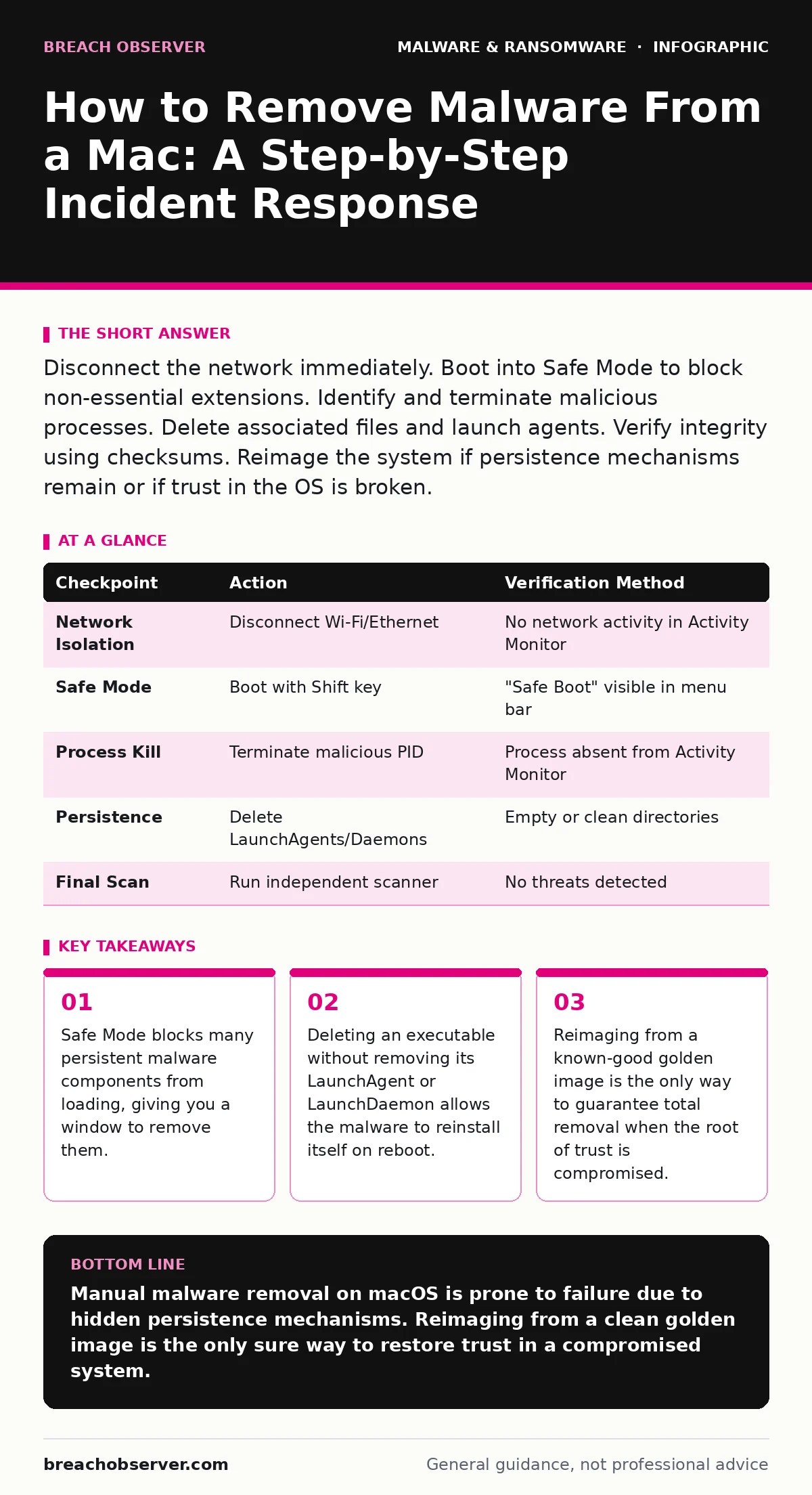
Disconnect the network immediately. Boot into Safe Mode to block non-essential extensions. Identify and terminate malicious processes. Delete associated files and launch agents. Verify integrity using checksums. Reimage the system if persistence mechanisms remain or if trust in the OS is broken.
Isolate the Infected System Immediately
Before you attempt any remediation, you must stop the malware from communicating with its command and control server. Many modern threats, including ransomware-as-a-service variants, exfiltrate data or download additional payloads upon infection. If you leave the machine connected, you risk lateral movement across your network.
Disconnect the Mac from Wi-Fi and Ethernet. Do not simply close the lid or lock the screen, as background processes continue to run. This isolation prevents the malware from receiving new instructions or spreading to other endpoints. It also preserves the state of the infection for forensic analysis if needed later.
Boot Into Safe Mode to Disable Extensions
Safe Mode performs a directory check of the startup disk and clears system caches. Crucially for incident response, it prevents third-party kernel extensions and login items from loading automatically. Many sophisticated Mac malware families use these mechanisms to maintain persistence. By booting in this state, you neutralise the active threat while retaining access to the system for removal.
Restart the Mac and hold the Shift key immediately after the startup chime or power-on indicator. Release the key when you see the grey Apple logo or the login window. You will see "Safe Boot" in the top right corner of the menu bar. This confirms that only essential system extensions are active.
Identify and Terminate Malicious Processes
Open the Activity Monitor application to inspect running processes. Look for applications with suspicious names, high CPU or memory usage, or paths that do not correspond to standard system directories. Malware often masquerades as system processes like kernel_task or WindowServer, but it will usually reside in a non-standard folder such as /Users/Shared or a hidden directory.
Select the suspicious process and click the 'X' button to force quit it. If the process restarts immediately, it indicates a strong persistence mechanism. Note the file path displayed in the inspector. You will need this path later to delete the source binary. Do not skip this step, as deleting a file while it is still in memory can cause system instability or leave the process running in a zombie state.
Remove Persistence Mechanisms and Files
Deleting the executable alone is insufficient. Malware installs persistence mechanisms such as LaunchAgents and LaunchDaemons to ensure it runs at startup or at specific intervals. These are property list files located in /Library/LaunchAgents, /Library/LaunchDaemons, ~/Library/LaunchAgents, and ~/Library/LaunchDaemons.
Open the Terminal application. Use the ls command to list files in these directories. Look for .plist files with random or suspicious names. Check the Program or ProgramArguments key within these files to confirm they point to the malicious binary you identified earlier. Delete both the plist file and the associated binary. Also check ~/Library/Application Support and ~/Library/Caches for leftover components.
If you suspect the threat is a complex malware dropper and loader, it may have installed multiple payloads. Remove all associated files. Failure to remove the loader means the main payload will simply be downloaded again. This is a common failure point in manual remediation.
Verify Removal and System Integrity
After removal, restart the Mac normally. Return to Activity Monitor and check for the suspicious processes. If they are gone, check the Login Items in System Settings to ensure no malicious applications have been added to the startup sequence. Use a rootkit scanner or a trusted endpoint detection tool to scan the system again.
This verification step is critical. Some malware uses fileless techniques or hides in memory, bypassing simple file deletion. If the threat remains, the infection is deep. At this stage, manual removal has likely failed. You must consider reimaging infected computers from a clean source. Attempting to patch a compromised OS is rarely effective against advanced threats that have modified system binaries.
See also: Incident Response Runbooks: 6 Common Misunderstandings Fixed · Implement a Threat Intelligence Program: Step-by-Step Execution
Establish Upkeep and Prevention
Prevention requires more than just scanning email attachments. You must restrict administrative privileges. Most Mac malware requires elevated rights to install persistence mechanisms. By running daily tasks with a standard user account, you limit the malware's ability to modify system files.
Enable Gatekeeper and Require Signed Applications in System Settings. This ensures that only code signed by trusted developers can run. Regularly update your macOS version to patch vulnerabilities that malware exploits. Implement managed detection and response (MDR) for continuous monitoring. MDR provides visibility into behaviour that static signatures miss, such as unusual process injection or network calls to known bad domains.
When to Reimage Instead of Remove
If the malware has compromised the System Integrity Protection or if you cannot identify all components, removal is risky. The hidden cost of partial removal is a backdoor that remains open for months. Attackers may use these backdoors to access your network later, making the initial infection just the entry point.
In these cases, back up user data carefully. Do not back up application files or executable scripts, as they may contain malware. Reimage the computer using a golden image that is known to be clean. This approach guarantees that no malicious code remains. It is the most time-consuming option but the only one that offers certainty. For critical infrastructure, consider IoT malware prevention strategies as well, as compromised peripherals can re-infect the network.
| Checkpoint | Action | Verification Method |
|---|---|---|
| Network Isolation | Disconnect Wi-Fi/Ethernet | No network activity in Activity Monitor |
| Safe Mode | Boot with Shift key | "Safe Boot" visible in menu bar |
| Process Kill | Terminate malicious PID | Process absent from Activity Monitor |
| Persistence | Delete LaunchAgents/Daemons | Empty or clean directories |
| Final Scan | Run independent scanner | No threats detected |
Key takeaways
- Safe Mode blocks many persistent malware components from loading, giving you a window to remove them.
- Deleting an executable without removing its LaunchAgent or LaunchDaemon allows the malware to reinstall itself on reboot.
- Reimaging from a known-good golden image is the only way to guarantee total removal when the root of trust is compromised.
Manual malware removal on macOS is prone to failure due to hidden persistence mechanisms. Reimaging from a clean golden image is the only sure way to restore trust in a compromised system.
Frequently asked questions
Can I remove Mac malware using only the Trash bin?
No. Dragging files to the Trash does not remove the associated LaunchAgents or LaunchDaemons that restart the malware. You must delete these system files manually.
Does Safe Mode remove malware automatically?
No. Safe Mode only prevents non-essential extensions from loading. It does not delete files or kill processes. You must still perform manual removal steps.
How do I know if my Mac has a rootkit?
Rootkits hide their presence from standard tools. If you see unusual network traffic or system performance issues despite clean scans, assume a rootkit is present and reimage the system.
Is it safe to backup files from an infected Mac?
Only user data files like documents and photos are generally safe. Do not backup application files, scripts, or libraries, as they may contain hidden malware components.
How this guide was produced: written by the Breach Observer editorial team with AI assistance, checked against the public references listed below, and reviewed when the facts change. See our editorial policy or report an error.